Monday, March 23, 2015

Digital Citizenship - Not only the School's Job to Teach


Ultimately all educators have a common goal for their students: to teach them to use the curriculum in the “real world”. But what is the real world?

As I see it, this is when students will be forced into decision making circumstances, affecting their life and well being, without the aid of a parent, teacher or other adult to guide them.

The decisions we adults faced in the past are not even close to what today’s students are exposed to. Students today have all the benefits of technology, but with these benefits comes great responsibility: aka Digital Citizenship.

And school isn’t the only place the topic can come up. So many habits and characteristics are learned from home. I always refer to the idea of saving money in Personal Finance. How often and how much a student saves starts long before there is any school lesson about it. There are birthday and holiday gifts of money that open the door of opportunity for parents to teach their children about the importance of money, saving and spending.
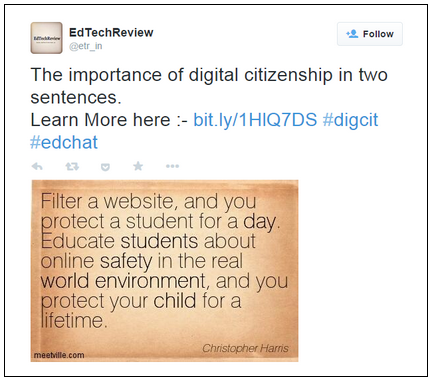


The first time your child used a piece of technology, whether it was a family device or one of their very own, did the topic of do’s and don’ts occur? I’m sure it did. DON’T get it wet. DO ask for help using it. Be careful NOT to drop it. DON’T use after 9 PM. And on and on. While these are great rules and each child should learn to take of and respect their device, where does the Digital Citizenship conversation come in? Who tells a child what to do when they come across an inappropriate website or pop-up window? Is your child able to distinguish between what is true and not true on the internet? When does a child realize that Facebook posts and Tweets can be permanent footprints, even if they have deleted it?  When a college is Googling them to determine admittance to their school, or a prospective employer is checking them out for possible employment, is a little too late.

My hope is that digital citizenship becomes a topic of discussion at home the first time technology reaches a child’s hand. There will never be a time in the life of today’s students that they will not be exposed to technology. It is continually changing. As new websites, apps and devices are developed, the conversation should occur, again and again and again. As a parent, I want my children to always be safe, but I know I can’t always be with them. Knowledge is power. Knowing my students, and my own kids, have the knowledge to make good decisions regarding digital citizenship helps me know they will be safe.

Wednesday, March 11, 2015

SpeakIt! Loud and Clear!!

One of the special needs teachers in my building came to see me today looking for options of software that would read text to her students. She showed me a few things she had found, but each was, of course, a purchase that needed to be made. Now consider that she has a few Android tablet devices in her room for student use, and multiply that purchase price by the number of devices. Dang!!


Once again, Google to the rescue. Since she came to visit I've been playing around with the SpeakIt! extension. What do I like best about it? Students select the text they want read back to them and simply click the extension in the bar and the reader begins. I like this much better than options I've seen that just read the entire page. If a students needs to hear a paragraph, or set of instructions, multiple times, IT'S POSSIBLE!

And the voice you hear almost sounds like a real person! The pronunciation is a little different on a few words, but for the most part students are going to get the information read back to them in a clear, precise, pleasant voice.

Now the cherry on top of the sundae: have you ever checked out the Bookshare website? This same teacher shared it with me. It is an accessible online library for people with special needs and it allows you to look up your book by title, author or ISBN. How great is that?

And if keeps getting better... This assistive technology that Google is providing us in the school, is also something parents or students could download and use at home! Is it Christmas today, or what!

Thursday, March 5, 2015

I am a Shareaholic!

Shareaholic
So many of you know that I am constantly sharing things on Twitter and Google+. My ultimate purpose? To get the best stuff out there for the staff in my district to see, in the hopes that a few things will spark their interest and get them using technology more.

I have been using bit.ly as my primary source for shortening the URL and sharing, but recognizing the fact that I am a Shareaholic (Hello, my name is Holly, and I have a sharing addiction) I've moved to using the Shareaholic extension in Chrome.

Now all I have to do is bring up the page I want to share and click the icon above that's next to the URL window in my browser. With a couple of clicks I have my information shared to my Twitter accounting and Google+.

AND if you really wanted to be tech-savy, you can set up keyboard shortcuts to use with Shareaholic to share your information! There is just no end to the cool extensions in Google. (Do you think there is a program out there for Google-a-holics? I might need it!)

Happy Sharing!

Sunday, January 25, 2015

Starting Over

It's Sunday Morning and I'm sitting in my office at school with papers and books spread across my desk, spilling onto the floor to the point that I can't move with tackling a project or making a final decision on what to do with this pile or that pile. Why you ask? Because the new semester starts tomorrow.

It feels like the day before the first day of school in September. There's new classes, new students, the chance to start again, do things differently, do them better, engage students in different ways, apply new things I've learned over the last four to five months. But that's not what I've been concentrating on. I've rearranged my office, added another file cabinet, cleaned my desk, cleaned my files, cleared my bulletin board, and purged, purged, purged. My recycling box is overflowing!

And I sit here thinking, wow, I've got a mess going here, but do I know what I'm going to do in class tomorrow? Jeez!! This happen every year. I start over, I start fresh, clean out the old, get ready for something new. And no matter how much I prepare and plan, it's still the day before the new class and I'm at school putting the final touches together.

But you know what? That's ok, I'm not alone. I've run into colleagues here this morning, I've talked to people doing school work from home, and I know my principal will be in today (well she is every Sunday, so that maybe doesn't really count). This is what we do, and this is what most people don't ever see. The Sunday morning work before church session. The 2am sessions finishing up things. Twelve hour days so we can go home and not do school work for one night. These are teachers. These are people I work with. These are my people, my tribe, and I'm proud to be part of this.

So.......guess I better get back at it........new students to connect with tomorrow, gotta get my A game on! Happy New Semester!

Wednesday, January 14, 2015

Organize Your App Launcher in Google

For those of you that are like me, you like to have things a certain way. Some might call this controlling, I call it being organized.

My App Launcher in Google is no exception. And in my personal account I can drag the icons around, but in my GAFE school account, I downloaded the App Launcher Customizer.

With this extension, I get the Configure option at the bottom of my App window that you see in the picture below.

App Launcher

When I click on Configure it opens a new window (see below).  On the right side I can drag the icons around and put them in the order I want. On the left are additional icons I can add to my app launcher simply by dragging them over. You may need to refresh your window before the changes go into effect, but you should not need to close and reopen anything.


Once again I am in control!

Sunday, December 7, 2014

Searching Google Drive

Many of you already know the basic search feature in Google Drive. And usually we use it when we are frantically looking for a document we needed yesterday and cannot find. But did you know you can filter your search?

When in Google Drive, go to the far right side of the search window, and you'll see a drop down arrow. Gotta love drop downs, there's always more options! Click on it and you can filter your search (see image below) Choose what type of file, what the file opens in, or who owns it.

Search Window Google Drive
Google Drive Search/Filter Options

Now I can't take credit for this little discovery, I was still randomly searching until Todd Segar pointed this out. AND...AND....AND....you can filter your gmail search as well:

Gmail Search Options

Oh Thank You Google Gods for helping me find things when I am most frantic (which is most days!) Happy Googling!!

Monday, October 20, 2014

Folders in Gmail

As we transition from Outlook to Gmail more and more as a district, the most often asked question is "Can I create folders in Gmail like I did in Outlook to organize my emails?" Well, yes and no.

What Google has done, instead of allowing you to create folders, they let you create labels, their version of folders. The video below does a great job and walking you through step by step.


This is a HUGE step for me to move away from Outlook and use Gmail more as my primary email. Happy Organizing!